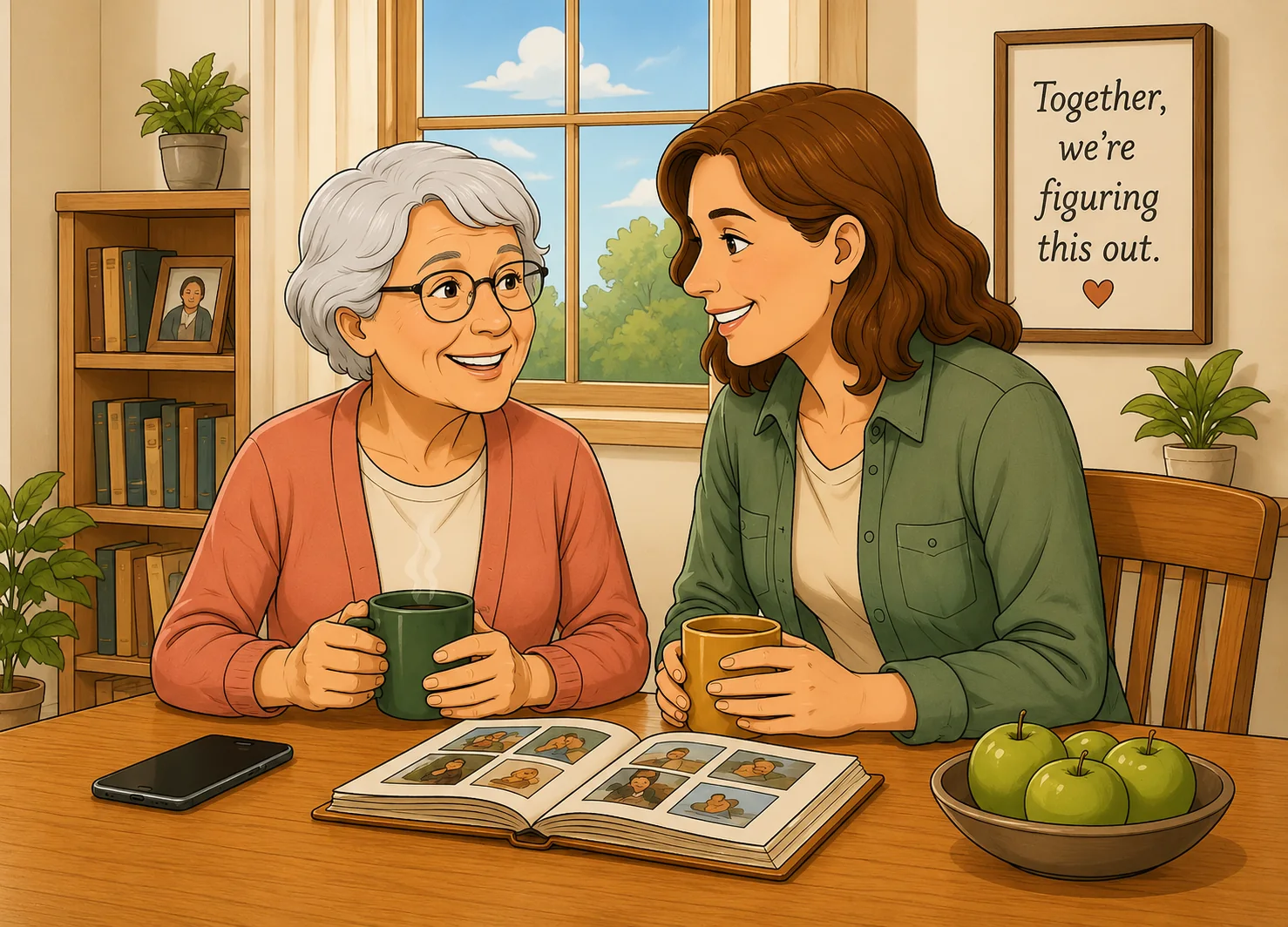
Start here
Helping your parentstay independent.Giving you peace of mind.
Caring for a parent doesn't come with a manual. Valora Parentis gives you the tools, guidance, and support to make confident decisions— while helping your parent live life on their own terms.
Explore Tools
Browse Articles & GuidesTools that make a difference
My Voice
Big buttons that speak for someone who can’t easily find the words — everyday needs, feelings and emergencies, read aloud.
 Scan to open
My Day
A calm screen of what’s happening now — the day, the date, what’s next, and steadying reminders.
 Scan to open
My Phone
A calm home screen of big buttons — call a familiar face, take a photo, look through pictures, and a simple Help button. Everything else stays hidden.
 Scan to open
My Scam Sense
Paste a worrying text or email and it points out the tell-tale signs — and explains each one, so you learn to spot the next one yourself. Nothing you paste leaves your device.
 Scan to open
My Emergency
Put the essentials — conditions, medications and who to call — on the phone’s lock screen, where anyone helping can read them without unlocking it. It’s made on the phone, and nothing you type is sent anywhere.
 Scan to open
My People
A private little book of the people who matter — a face, a name, and one line each. Build it here, then show it full-screen or print it. The photos never leave the device.
 Scan to open
When you’re not sure what to do
Thoughtful guidance for the moments that matter.
56 Articles
Our Two Paid Apps
One app for the family’s smartphones, and another for the parents’ computers.
My World
Their computer
For families, not experts
Help your mum or dad stay close — without taking over.
My World turns the Windows computer they already own into a few big, friendly buttons: see the family, read a safe email, enjoy their photos and radio. You help set it up — and you can lend a hand from anywhere.
The quiet drift
You’ve probably had the phone call.
The one where you realise something has quietly changed. A parent who used to email the grandchildren has gone quiet. A stroke made the mouse impossible. A scam text shook their confidence — so the computer sits unused, and little by little they feel further away. It isn’t that they can’t. It’s that everything got harder.
A calmer computer
Technology, made simple.
Instead of a confusing desktop, My World gives them a calm, uncluttered screen with large buttons — one for each thing that matters. One tap to call you. One tap to see their photos. No menus, no pop-ups, no getting lost.
See the family
One tap starts a video call to you — your face right there on the button. The camera comes on by itself, and a big red “End call” is always in reach.
Email, without the worry
Only the people you’ve approved reach them. Everything else is held for you to look at, so they never have to work out whether a strange message is genuine. And when someone new matters — a new doctor, say — you let their address through, or the whole surgery’s, and it arrives normally from then on.
Their photos, always fresh
A full-screen slideshow the family fills straight from their phones — Share → Mail, and the picture appears by itself. No shared folder to set up, no app, no account. Only people you’ve approved can send, so nothing lands on their screen uninvited.
Radio & a gentler web
Favourite radio stations at a tap, chosen from stations checked as working — so a button never goes dead on them. And only the websites you’ve chosen together, with no address bar to get lost in and no pop-ups.
When the words won’t start
A blank page is the hardest thing to face. “Help me write it” asks two gentle questions — why are you writing, and how are you feeling — and drafts the letter in their name. They can change every word of it, or send it as it stands.
Help from anywhere
You set it up with them, and you can lend a hand later — even by replying to an email — for instance to let a genuine new sender, like a doctor, through. Not everything travels, though: the first setup needs you in the room, and an email can nudge a setting but never show you their screen.
Designed around them
Which of these sounds like them?
You don’t set this up by choosing settings. You start by saying what your mum or dad finds hard, and it suggests the rest.
After a stroke
Sight lost on one side
Some people lose vision on one side and don’t realise things are there. Everything moves to their seeing side, large and high-contrast.
After a stroke
A weak or shaky hand
Weakness or tremor makes small targets and quick taps hard. Bigger buttons and forgiving taps help — and there’s no hurry.
Aphasia
Difficulty with words or reading
Aphasia affects finding or understanding words — not intelligence. Fewer words, more faces and pictures, and button names read aloud.
Memory
Memory problems or dementia
Fewer choices, familiar faces and a screen that doesn’t change. You can put away anything that invites getting lost, and keep calls, photos and radio.
Fatigue
Tires easily, or chronic illness
Energy is precious. Fewer, larger buttons and short, direct paths mean less effort for the same reward.
Eyesight
Low vision or ageing eyes
The largest text, strong contrast and spoken labels keep the screen usable when sight is failing.
Tick whatever fits when you set it up — ideally sitting together, so it’s their choice too. And nothing is final: needs change, and you can come back and change it in five minutes.
Designed around them
It helps. It never takes over.
My World does the confusing parts so your parent can do the parts that matter. It’s large, clear and kind — it never treats them like a child, or like a patient. You’re a hand when they want one, not a manager.
And it isn’t fixed the day you set it up. Needs change — after a stroke they often improve, with dementia they don’t. Everything you chose can be changed again in five minutes, as many times as it takes.
How the family part works
Support, not surveillance.
There’s no “watching over” anyone here. You help with setup and with the occasional “is this email okay?” — nothing more.
Set it up together
A short Quick Start walks you through the essentials one screen at a time — their name, one family face to call, your PIN — so the fiddly parts go quickly. Then sit together and choose who they can call and email — family already in the computer’s address book come across without retyping — and how big and simple it should be. It’s their computer; you’re just helping it make sense again.
Help from afar
Approve a genuine new sender or nudge a setting simply by replying to an email — from your phone, even if you live hundreds of miles away.
No watching
There’s no log of what your parent does. The one thing you’re told is if they write to someone new — the address, never the message — because that’s when you might need to decide whether to let that person in properly. Nothing else reports on them. Their privacy stays theirs.
Honest by design
What My World doesn’t do.
Trust should come from honesty, not big promises. So here’s the plain truth.
- It’s not antivirus or security software. It doesn’t scan the computer or claim to protect it from viruses.
- It can’t stop every scam. It greatly reduces the chances — nobody new can start a conversation, so nothing arrives uninvited. But if your parent is talked into writing to someone first, a reply to that one letter will reach them. No product catches everything, and good conversations still matter.
- It doesn’t watch, track, or report on your parent. There’s no activity feed about them. One exception, and it’s deliberate: if they write to someone new, you’re told the address — never what they wrote — because that’s the moment you might need to decide whether to let that person in properly.
- It’s not a replacement for judgement, or for you. It’s a helpful, calmer space — not a substitute for a chat.
- It’s not a new gadget. It runs on the Windows computer they already own.
What we keep hearing
The same few problems, in almost every family.
We started building this because we're living it — caring for our own parents, and dealing with these problems alongside them every day. And whenever we talk with other families and carers, the same troubles come up: the same situations, everyone looking for a way through. These are the ones we set out to solve.
The computer quietly stopped being used
It didn't break. It got harder — an update moved everything, a password stopped working, and one day it was easier not to bother. Nobody notices the drift starting.
One scam knocked their confidence out
Usually it wasn't the money. It was losing the certainty of being able to tell — and after that, every message felt like a risk not worth taking.
After a stroke, the mouse became impossible
Small targets, a hand that won't stay still, sight gone on one side, or words that don't arrive. The computer hadn't changed; it just no longer fitted the person using it.
Helping meant a phone call or a long drive
“Which button, Mum?” down the phone helps nobody. Carers wanted to lend a hand from where they actually live — without taking the machine over.
Nobody wanted watching — on either side
Carers were uneasy about anything resembling spying. Parents were plain that they didn't want checking up on. Both wanted help that stops short of taking over.
It had to be the computer they already own
Another device to buy, charge and learn was the thing people had usually tried once already — and quietly given up on.
Simple, honest pricing
My World — one licence, three computers.
A single, one-off payment — no subscription. One licence covers three computers, so you can put it on your own first and have a proper look, and set up both parents if they're on separate machines.
- Everything on the home screen — calls, email, photos, radio, web
- Stroke & low-vision settings, and read-aloud
- Family setup guide and help-from-anywhere tools
- Covers 3 computers — try it on yours first
- Runs on the PC they already own — no subscription
One payment, no subscription — and you can go back to normal Windows at any time.
Questions families ask
Straight answers about My World.
Is it spying on my parent?
No. There’s no activity log about them and nothing that reports what they do. One deliberate exception: if they write to someone new, you’re told the address — never what they wrote — because that’s the moment you might need to decide whether to let that person in properly.
Does it stop scams?
It greatly reduces email scams: nobody new can start a conversation, so nothing arrives uninvited. If your parent writes to someone first, a reply to that one letter reaches them — for a month, and you’re told — so they’re never left waiting on silence. But no product can catch everything, and we’d never claim to.
Do we need to buy anything new?
No. It runs on the Windows 10 or 11 computer they already own. There’s nothing to plug in and no new device to learn.
How many computers does one licence cover?
Three. That’s deliberate: most people install it on their own computer first, to have a proper look and practise the settings before setting up their parent’s — and some are looking after two parents on separate machines. So if you’ve already activated it on your own computer, that’s fine, it’s simply one of the three. Setting up a computer you’ve activated before is always free and never uses another one. It runs on Windows 10 and 11, and covers the app as it works today — we can’t promise how future versions of Windows will treat it.
Will they actually be able to use it?
It’s built for exactly this: big buttons, one tap, no menus, and settings for vision, a shaky hand, difficulty with words, and memory changes. You can also put a real photo on each button.
How do family and friends video-call in?
One private link does it — share it with anyone you trust. They need no licence and install nothing to start: they open it on a phone, tablet or computer, type their name the first time (so the screen shows who’s calling), and it rings. One thing to set up first: by default the screen only rings for callers you’ve added in the app, under Family & video calls — so add each person by name, and ask them to type that same name. On a phone they can add it to the Home Screen for one-tap calling and switch on ‘ring my phone’ to be alerted the moment your parent wants to talk. It works wherever they are — home WiFi or mobile data.
I live far away — can I still help?
Yes. You set it up together, then from anywhere you can approve a new sender or change a setting — either by replying to an email, or by using the online carer page, which builds the exact instruction for you to send. No visit required.
Is the Help button an emergency button?
No. It’s for when something has gone wrong and they’d rather just talk to someone — one tap calls the person you nominate, usually you. It is not an emergency alarm or a medical alert, and it doesn’t reach the emergency services. For a real emergency, they should still call the emergency services as they always would.
What if they don’t like it?
You can switch back to normal Windows at any time with a PIN — it isn’t a permanent takeover of the computer, and the ordinary desktop is always still there underneath.
Bring them a little closer.
A calmer computer, the faces they love, and a hand when they want one. Set up together, in an afternoon.